Nekorii Mouse
Switch apps and desktops with your mouse.
Hold a mouse side button and scroll to switch apps, or click to move between desktops. Open the Radial Menu right at your pointer to start a timer, find something you copied, or launch an app.
Free for 7 days. $5.99 USD one-time purchase if you choose to keep using it.
Requires macOS 14 or later. The shortcuts shown use a mouse with side buttons.
Mouse gestures
- Switch Spaces
- Hold the Back side button. While holding Back, right-click. The next desktop slides into view.
- Switch apps
- Hold the Back side button. While holding Back, scroll the wheel. The other app comes to the front.
- App Exposé
- In Mouse settings, assign App Exposé to Forward + right-click. While holding Forward, right-click. App Exposé spreads out the current app’s windows so you can pick one.
- Radial Menu
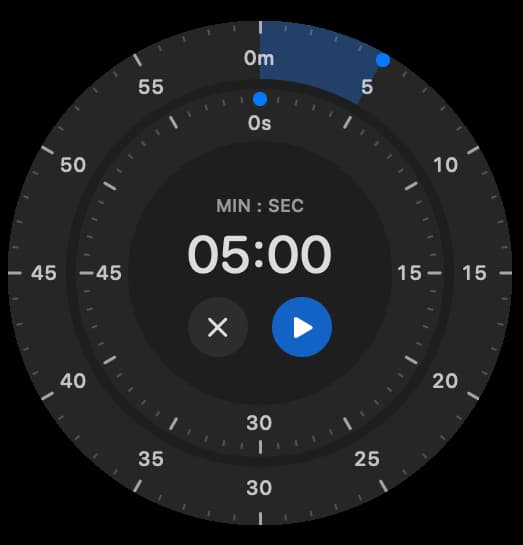
- Hold the Forward side button. While holding Forward, left-click. The Radial Menu opens at your pointer. Hover over Timer. Drag the outer dial to five minutes, then release. Click Play to start the countdown. The menu closes and the timer stays visible in a floating capsule.
A menu right at your pointer
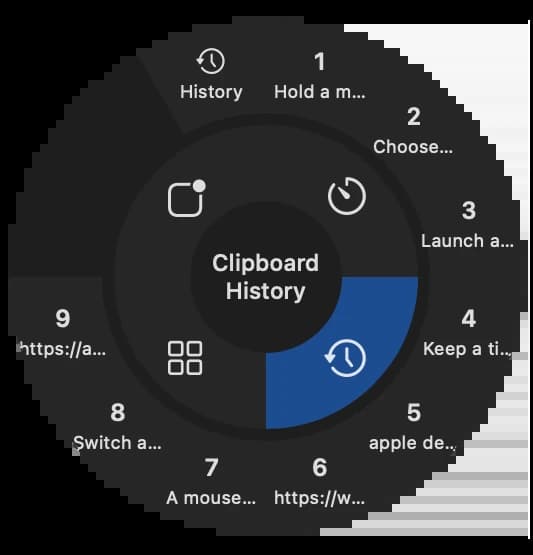
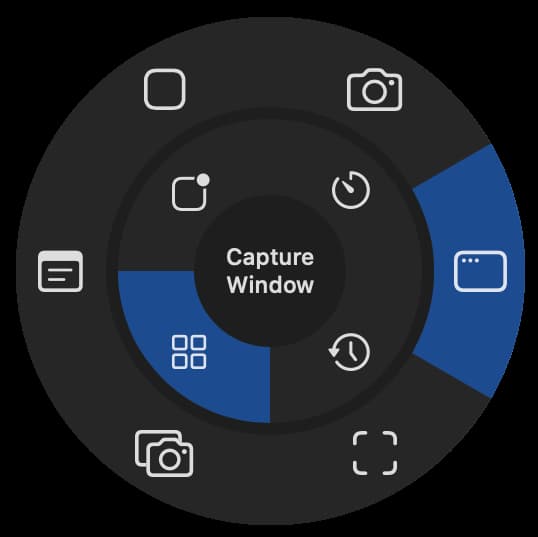
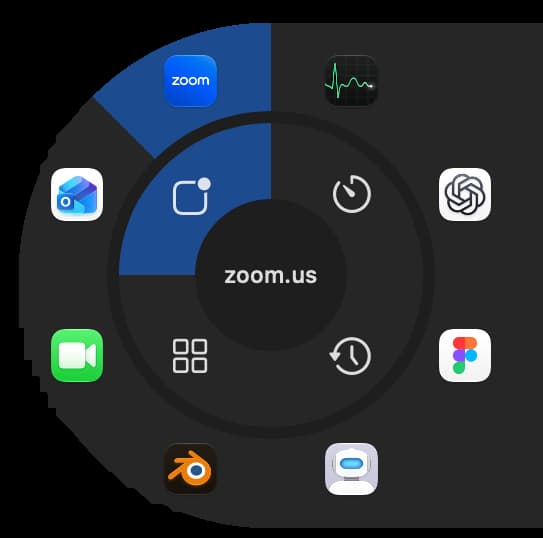
Open the Radial Menu from the menu bar or, by default, hold the Forward side button and left-click. Hover over a category to reveal its actions, then click one.
Keep a timer visible across desktops
Set minutes and seconds on the dial and press Play. Drag the floating timer wherever you want it across Spaces and full-screen apps. Pause or resume it, choose a floating timer theme and completion alarm, or show the timer in the menu bar with Cat, Hourglass, or Numbers. The capsule’s fill shrinks as time runs down. In Cat mode, the cat starts out playing and runs in a later phase.
Find something you copied earlier
Hover over a recent clip in the ring to preview it, then click to copy it so you can paste it where you need it. Open the searchable history to pin or delete clips. History stays on your Mac. You can change how long unpinned clips are kept, exclude apps, turn history off, or clear it.
Launch apps and run actions from your pointer
Open chosen apps, capture a window with macOS, open Capture Toolbar or Apple Notes Quick Note, and run saved keyboard shortcuts. macOS handles capture and saving. You can also assign saved shortcuts directly to mouse gestures.
Mouse button settings
Choose what a single press of each side button does. You can also block the button’s default action. Turn on “Switch Spaces while holding left click” to drag a file into a full-screen app in another Space. While holding the file, press a side button to switch Spaces, then drop it into the app.
One hold. One click or scroll.
Hold a mouse side button, then click or scroll to switch desktops (Spaces), switch apps, or open App Exposé.
Shortcuts for the actions you repeat.
Fewer trips to the keyboard
Keep one hand on the mouse and leave the other free for a snack or whatever else you need.
Choose the macOS action
Assign each button-and-scroll combination to Space switching, foreground app switching, App Exposé, Mission Control, or another built-in macOS action.